You can use Crunch’s search to find your datasets, variables, documents, dashboards, and folders in Crunch. Search allows you to use natural language to search for data, which means you can type your search results the same way you would normally speak.
You can also perform a keyword-only search when your entire search query is in quotation marks. All related search results will be excluded, and only results with an exact keyword will be returned. The entire search query must be in quotation marks for this to work. For example, if you search for "United States" only results with the exact keyword "United States" are returned.
Searching in Crunch
To search all content in Crunch:
- Locate the search button on the top right of the navigation bar in Crunch. Click the button to open the search bar.
- Type your search query and click Enter.
-
Select the All tab to see all content. Select a date filter if applicable:
If the result is a dataset or variable, the dataset name will appear. If there are matching variables in the dataset, a link showing relevant variables appears below the dataset name. If the result is a document, the document name will appear. A link showing all matching results in the document appears below the document.
-
Click the link to expand the results:
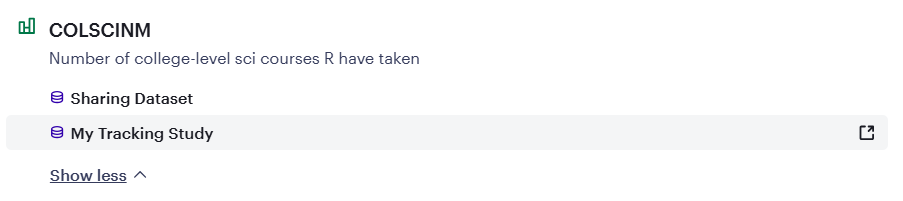
- Click on the matching result to open the variable, dataset, or document in the same window. If you hover over the results, a
 button appears to the right of each result. Click this button to open the search results in a new tab.
 - To close the search window, click the
 button in the search bar to the right of your search query.
Searching for variables, datasets, documents, folders, or dashboards
If you only want to search for variables, datasets, documents, folders, or dashboards, choose the appropriate tab and perform your search the same as above. The content will only include the selected content type.
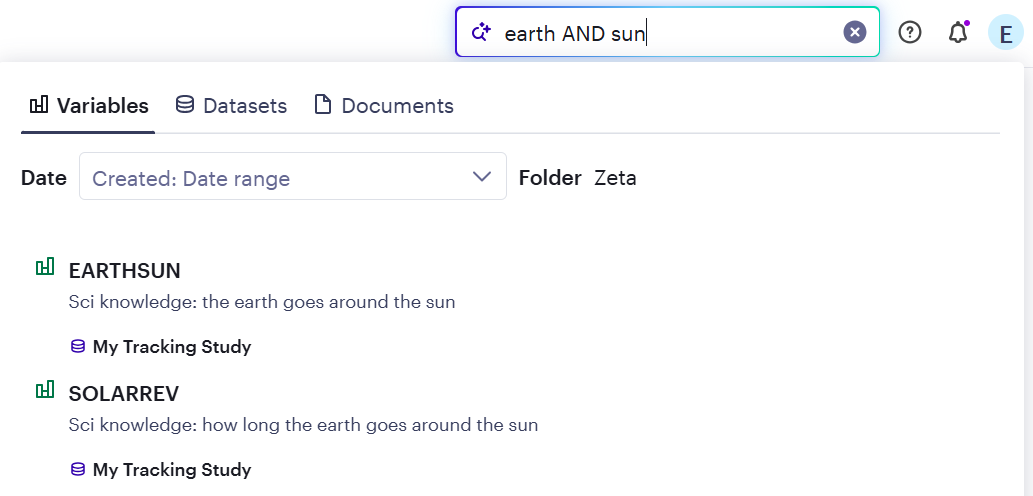
Boolean search
Crunch supports Boolean search, a technique that uses operators
AND, OR, and NOT to combine
keywords and refine search results. To use Boolean search in Crunch, type
two
or more keywords separated by AND, OR,
or
NOT (must be in uppercase).
Providing feedback on your search results
To provide feedback:
- At the bottom of your search results, click the thumbs up to leave positive feedback or click the thumbs down button to leave constructive feedback.
- Optionally, enter a message to provide Crunch with some additional information.
-
Click Submit feedback to submit the response.