At the time this article was written, you need to enable Early Access in Crunch to access the new Analyze Mode.
Multitables allow you to create analyses using multiple column variables. Sometimes called ‘banners’ or ‘crossbreaks’, they let you quickly see multiple breakdowns of a variable of interest. To use multitables, start by selecting Analyze Mode from the toolbar on the left side of the application:
When Analyze Mode is opened the variable you selected in Explore will be shown by default. If no variable was selected then the first variable in Explore will be shown.
Creating a Multitable
To create a multitable, simply add variables to the table as columns. There are three ways to add a variable as a column to a table:
- Drag and drop onto table: drag the variable you’d like to add as a column and drop it on the table:
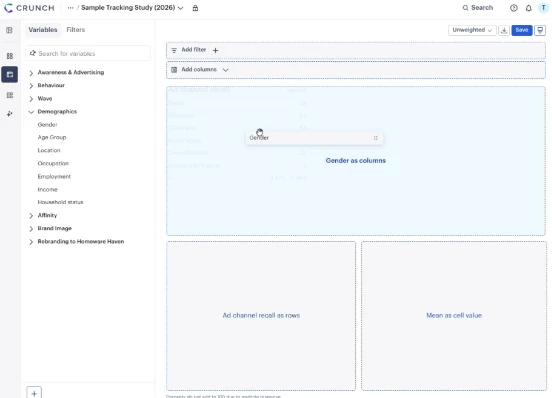
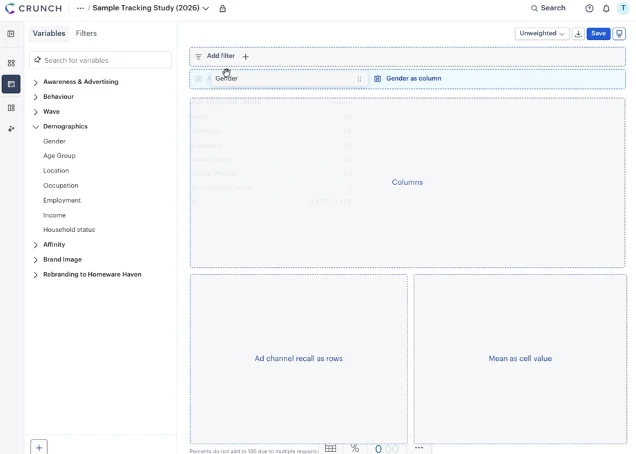
2. Drag and drop onto config bar: drag the variable you’d like to add as a column and drop it on the config header bar called “add columns”:
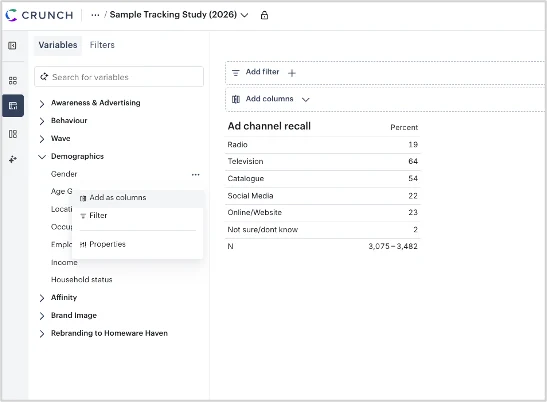
3. Click on three dot menu: hover over the variable you’d like to add as a column, click on the three dot menu, and select “add as columns”:
Exporting a Multitable
To export a multitable, click on the download button in the top right corner of the analysis screen and select "export this table".
Editing Categories
If you'd like to focus your analysis on specific categories within a variable, click on the variable pull and deselect the variables you'd wish to hide.
Removing Variables
You can remove variable from your multitable by:
- Clicking the X on the right side of any variable pill
- Clicking the X that appears on hover next to each variable header in the multitable
- Clicking the caret that appears on hover next to each variable header and selecting "remove".
Saving & Loading Saved Banners
You can save the banners you create by clicking on the carat in the column header and select "save columns". This is also where you can find your previously saved banners and share them with colleagues.