As a data owner, you can organize datasets into a hierarchy of folders and grant other users access to those folders to give them access to their contents.
Creating a Folder
If you can edit the current folder, you can create a new folder within it. Click the New button in the top right and select Folder from the dropdown menu. This will allow you to name the new folder.
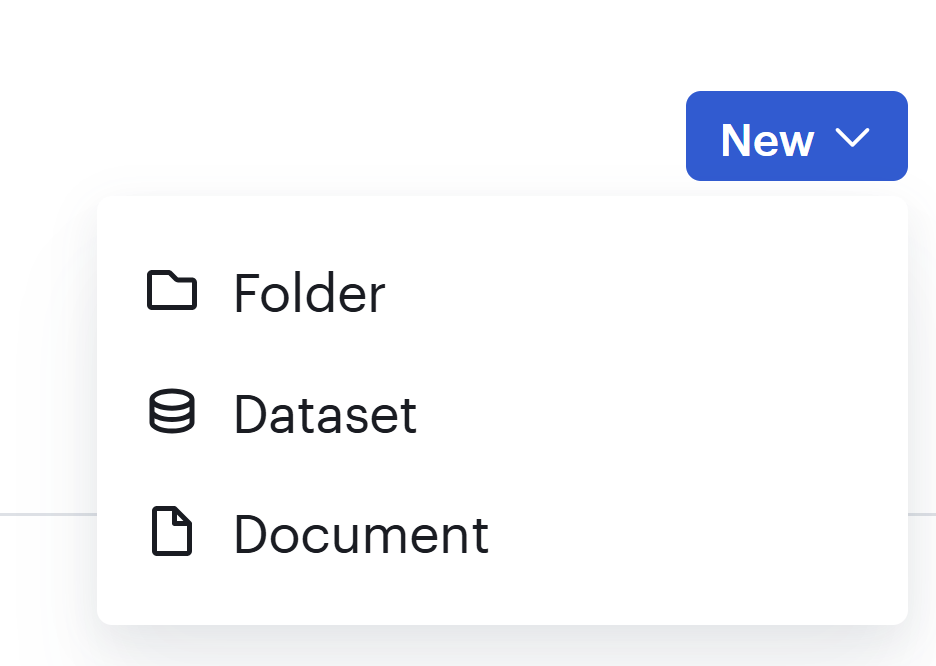
Once you have created the new folder, you can click it to open it. By default the new folder will contain no datasets and all users who have access to the parent folder will have access to it. See below for information on moving or importing data into a folder as well as granting access to other users.
Deleting a Folder
To delete a folder, click the three-dot menu beside the folder name and select the Delete folder option in the drop-down menu:


After you click Delete folder, the following confirmation message appears. Click Remove folder to permanently delete the folder, which cannot be un-done:

Importing a Dataset
To import a dataset, click the current project name and select New dataset from the dropdown. The Import dataset panel will open as described in Importing Data. Once imported, the data will be contained in the current folder.
Moving a Dataset
To move a dataset:
- Locate the dataset in the folder sidebar.
- Click and hold the dataset.
- Drag the dataset to the desired folder.
For more information on the folder sidebar, see the following article:
Alternatively, you can also move a dataset, document, or subfolder by clicking the three-dot menu on the right side and selecting Move to... from the drop down menu:
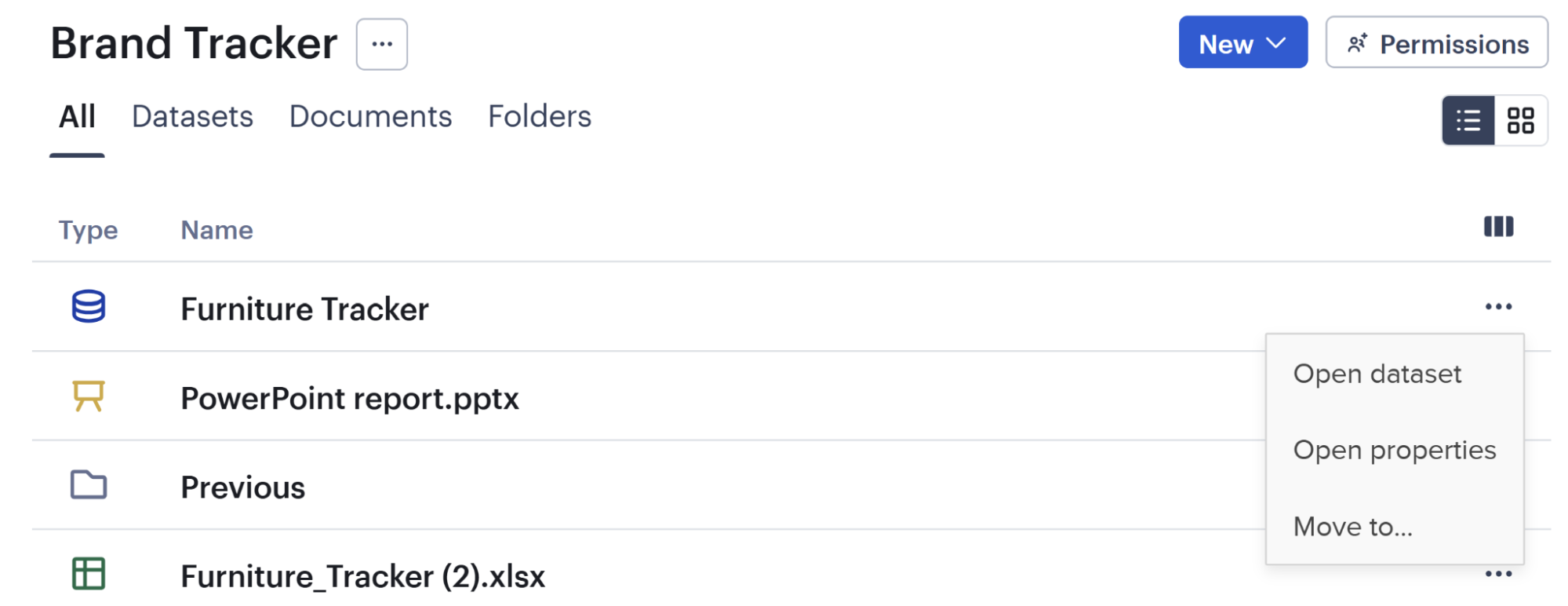
This opens the Move to... widget:
This widget allows you to navigate through your folder hierarchy and choose a new location for the dataset. Once you have navigated to a folder that you can edit (and is not the current location), the Move button will become active. Click it to move the dataset.
At this time you can't move folders into other folders or move multiple datasets at once.
Editing Folder Settings and Members
To change a folder name, click the three-dot menu beside the folder name in the header and select Folder properties:
This will open the folder properties panel where you can change the name. This is also where you can delete the current folder if it is empty (if it is not empty, you will not be permitted to delete it).
Select Manage users to view and edit the list of users who can access this folder. Granting a user access to a folder grants them access to everything within that folder (including subfolders and their contents). Note that all users who can access the parent folder will be able to access any subfolders.