Creating new dashboards
New dashboards are created via the deck/dashboard tray which is opened by clicking on the following button:


Once the tray is open, click the tray’s header bar to open the menu:

In the menu that appears, choose “New dashboard…”:

Here you can choose whether to create a new dashboard via saving analyses from Tables & Graphs mode or whether to create a new dashboard via script. If you want to create a dashboard via script, see the dedicated guide to scriptable dashboards. Otherwise, read the following.
In the panel that appears, give your new dashboard a name and choose if you want the Dashboard width to be Auto or Constrained to a certain size. See this article to learn more about Dashboard widths.
- If you want to create a draft dashboard that no other users can see, select Only me from the Share with drop-down menu.
- Choose All dataset users to share with all users who have access to the dataset.
When finished, click Create to create your dashboard. The name you use here will appear as the title in the dashboard’s header.

Adding content to your dashboard
You now have an empty dashboard container to start filling with your analyses of interest.
See this page for details on how to save analyses to a deck or a dashboard. Note that decks and dashboards are different kinds of containers and behave in some subtly different ways. Remember to create a dashboard and save your analyses into it if your end goal is to display those results in a dashboard.

Once your dataset has a dashboard, you will see a “Dashboard” button in the header. Clicking here will jump you to view your dashboard where you can make further changes, including layout and visual customization. If your dataset has more than one dashboard then the button in the header will say “Dashboards” and will open a dropdown menu where you can choose which dashboard you want to navigate to. Crunch allows you to have any number of dashboards on a single dataset. To add a second or subsequent dashboard, simply repeat the steps above, starting with clicking on the “New dashboard…” menu option in the dashboard tray.
Various options are available for dashboards and you can read more about them in these pages:
- How to add a rich-text tile to a dashboard
- How to apply filters to a dataset dashboard
- How to add tabs to a dashboard
- Exporting a dashboard to Excel or PowerPoint
- Setting a dataset’s homepage
- Customizing dashboards and dashboard tiles
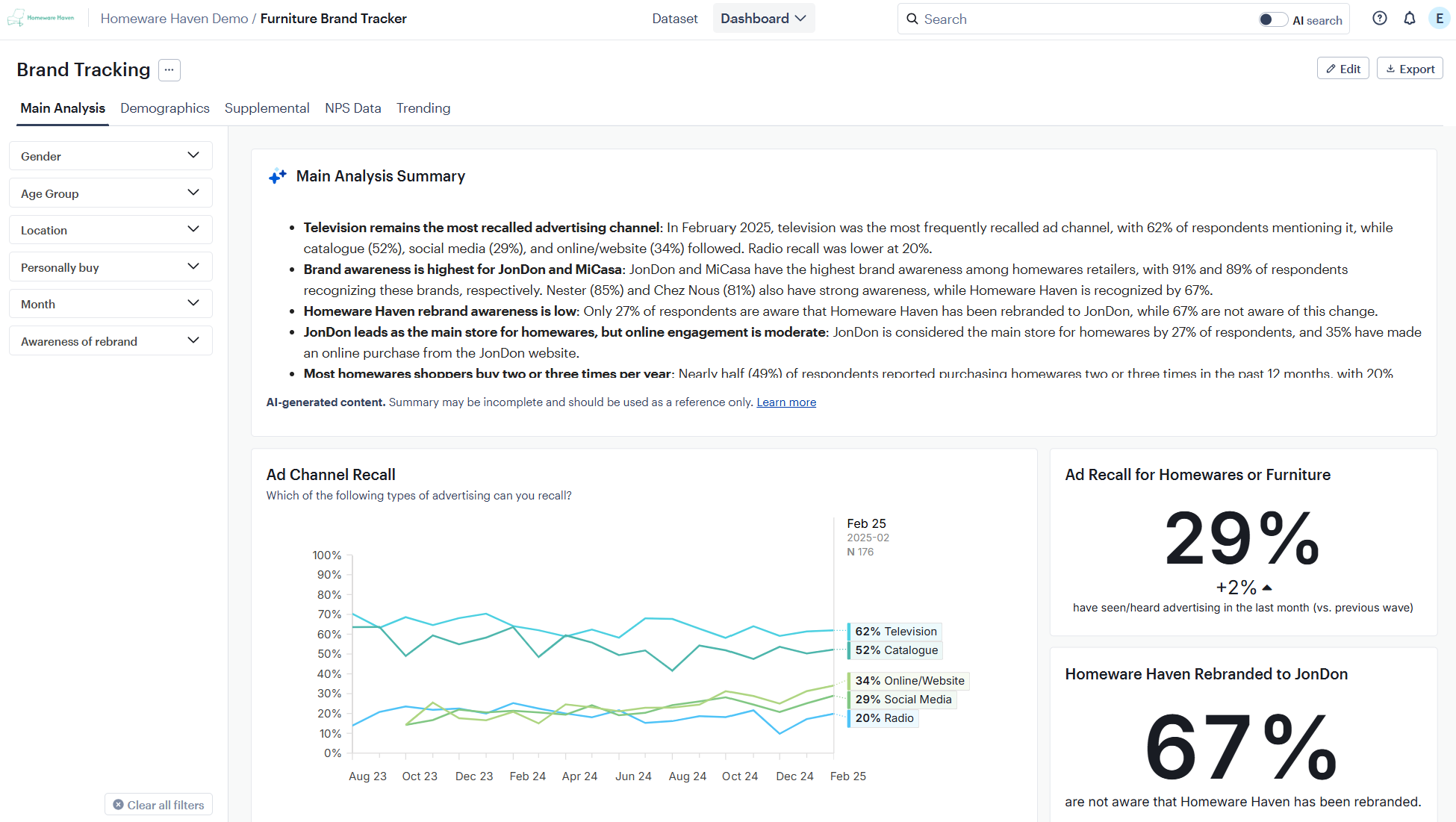
Here is a sample dashboard you can create in minutes using Crunch: